The frame rate is a significant perameter within X-Plane.
This is
the rate at which the rendering engine is able to present the images on
screen. It depends on many factors, especially as extras get
added on to the simulator. If you have a superfast computer
with a large and fast video card you will be able to get away with lots
of
problems that occur on mid range computers.
The OpenGL rendering
engine used in X-Plane is on aging bit of software, over 16 years old in 2019.
It works on a single thread technology, so if you have a quad
core computer, the sim will run at 1/4 the capacity of the 4 processors
when rendering images. It helps to switch off multiple thread
functions. When the sim is moved to a more efficient
rendering
engine (Vulkan), this will improve for multiple processor machines in the future.
Minimum
sensible requirements - Pentium i3 processor at 3.5 GHz with 6GB RAM
and a 1 GB video card. Anything less will struggle to run the
simulator. More powerful computers are better suited to give
a
higher frame rate and better performance.
A clean computer also helps a lot. Most
operating systems have loads of functions working in the background,
espacially if your computer is connected to the internet.
Having
a computer dedicated to your flight simulator, with minimal additional
software will keep things running faster.
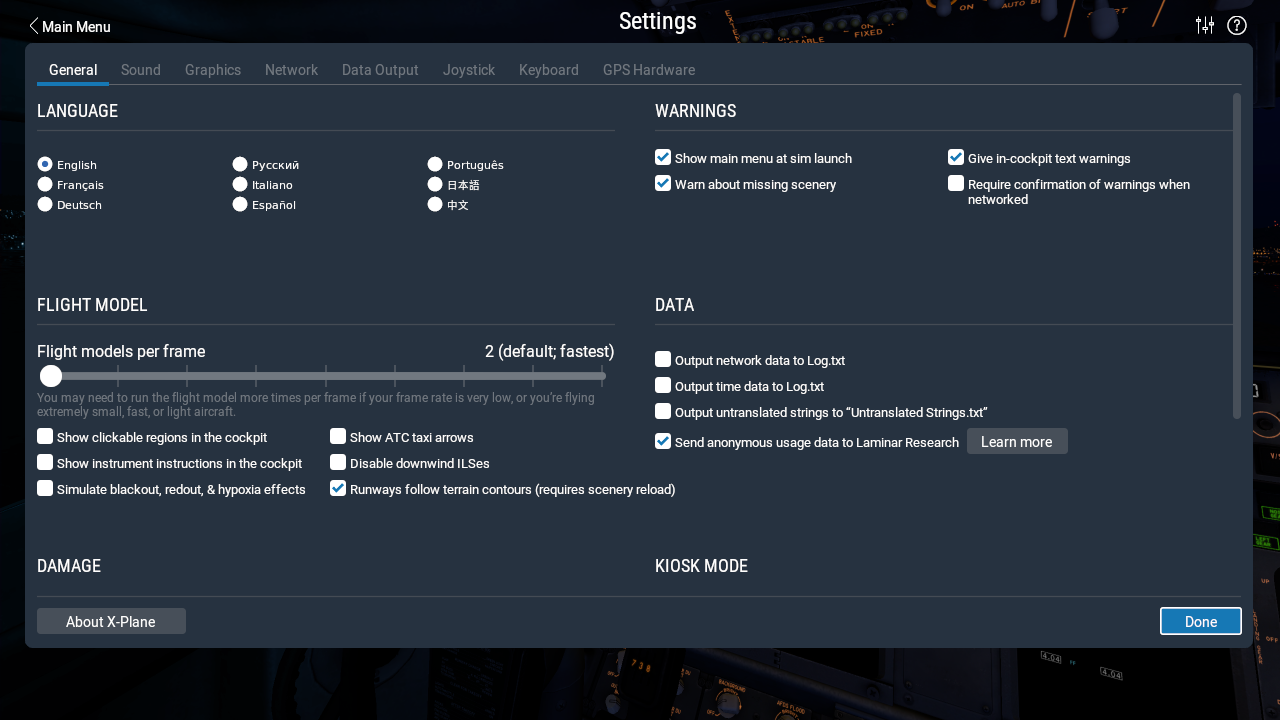
The general setting menu has a slider for Flight Models per
Frame.
The default setting is 2, which means the rendering engine
compiles two identical images and overlays them to put an image to
screen on each cycle. On a fast clean machine this may happen
60
times a second. Moving this slider to the right will have an
effect on the frame rate. For small aircraft you should
set
this slider as near to 2 as you can. Faster aircraft and helicopters
will benefit visually by sliding this setting 1 or 2 notches to the
right. You will not notice a
difference between 60 and 20 frames a second for most aircraft.
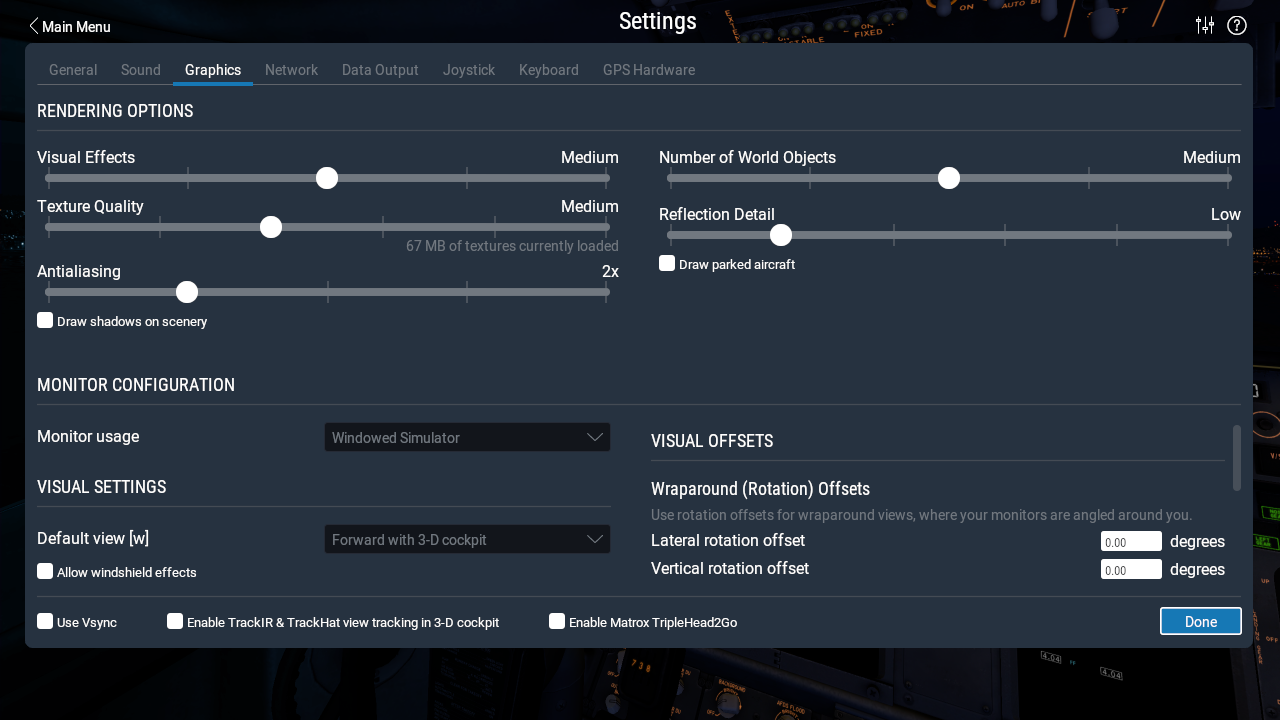
The graphics settings menu is more complex. This is where
most of the visual tweeks will need to be made.
Visual Effects
Set
this slider to medium for most uses. If all runs smoothly it
can
be edged right to enhance the effects. This setting needs to
be
at HDR to show light spill both in daylight and at
night,
so it needs to be pushed right for night time operations.
Texture Quality
Again, set this to medium. If your machine has a fast
processor you can move this two bars to the right
Antialiasing
Set
this slider to 2x to enhance the visual output to screen. Do
not
exceed this value on a mid range computer. If you have a 4GHz
processor and a 2GB video card then you will be able to slide
this
setting one bar to the right with good effect. This slider
compounds images to remove jagged edges in the scenery images. If
your screen
flickers or stalls, move this slider left.
Number of
World Objects
Start
at medium. If you are flying around a small island group, the
screen will cope easily with this setting. Displaying a lot
of
world objects requires processor and memory power. This will
be
noticable over large cities and busy international airports.
Reflection
detail
Again,
the further right this slider is, the more demand is put on the
computer processor. For some airports it may be appropriate
to
have this detail set higher, but this may be a problem on Mid range
computers.
Ticking the box for drawing parked aircraft will enhance details - not
needed if yours is the only aircraft on a small airfield.
Ticking the box for drawing shadows on scenery is very processor
demanding, but the effects can be spectacular.
Ticking the box to allow windshield effects is more realistic in flight,
but also buts more demand on the processor.
Multiple
Screens
If
there are 3 screens in use, this is where you can adjust the screen
rotation to display the side screen views. The setting
depends
upon the orientation of the screens and the position of the seat, so
each setup is unique. Start with 45.00 degrees lateral and
-5.00
degrees vertical in each box and adjust to suit your setup.
Other Frame Rate Inhibitors
Real weather engines can push down the framerate if other factors are present.
Very big texture files on complex scenery objects or OrthoScenery will have an impact on frame rate.
Large numbers of AI aircraft (10+) will make a significant demand on processor usage.
Highly detailed and complex airport scenery models in close proximity with busy traffic may present framerate issues.
Limited video card capacity is the bigest issue in most cases.
Rogue Windows......!
If you have a Microsoft Windows
computer operating system you may come across rogue windows, where you
are running 2 versions of X-Plane at once. This usually happens
when you have a computer set up for multiple monitors, then you unplug
a screen. For instance - 3 monitors reduced to 2 monitors.
The files in the preferences folder contain the monitor set up
information (X Plane Windows Positions and X Plane Screen Resolution).
X-Plane will run the missing monitor behind an existing screen
display as an additional version of X-Plane, so in this case the extra
graphic and CPU load will reduce framerate by about half.
3 monitors are set up as - Monitor 0 Monitor 1 Monitor 2 - and by removing the code for the missing monitor, the framerate will be restored.
The easiest way to do this is to delete the two preference files and reboot X-Plane.
X-Plane 11/ Output/preferences/X-Plane Window Positions.prf
X-Plane 11/ Output/preferences/X-Plane Screen Res.prf