In order to create transparent windows you need to generate your scenery texture files carefully.
Firstly, consider the benefit that having transparent windows will bring to your scenery. If the windows are easily seen from an aicraft on the airfield, then transparent or translucent windows may be appropriate. 100 yards away from possible aircraft positions may be a waste of effort.
The first consideration when designing your texture file should be to paste up the texture elements on a transparent background. I use photoshop to do this, but any suitable software will do the job. An example is shown below.
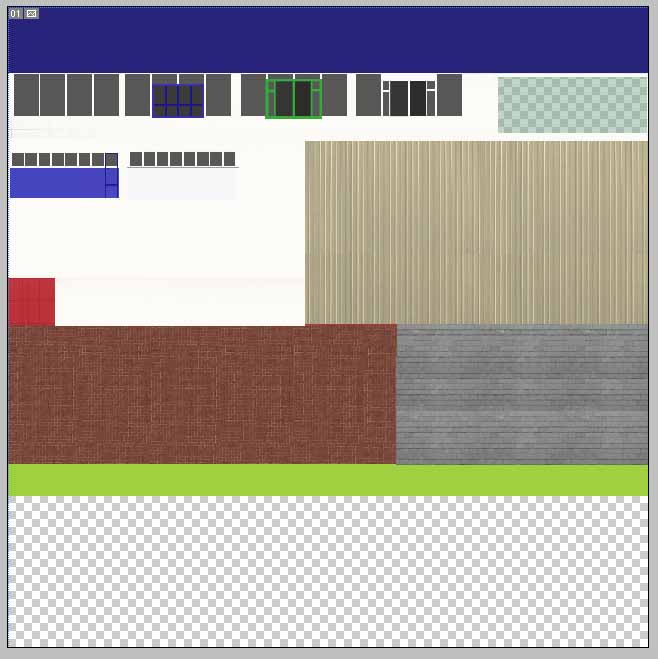
The .png file shown has the scenery elements added to the top 2/3 of the frame, the bottom of the frame still has to be pasted up. Look at the area near the top right of the frame. This is a pastil blue colour, painted on at 60% colour saturation, showing the transparent background markings behind the colour. This will be transparent to a degree on the final model.
To see how the glass finish works, you will need to create a SketchUp (Or other CAD program) model. Two examples are shown here.
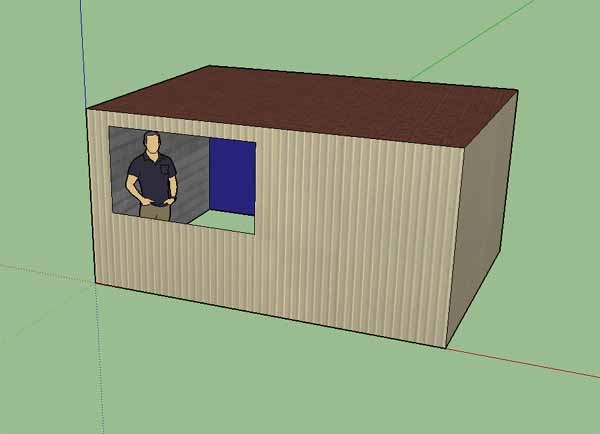 Model using pale green texture at 50% saturation. | 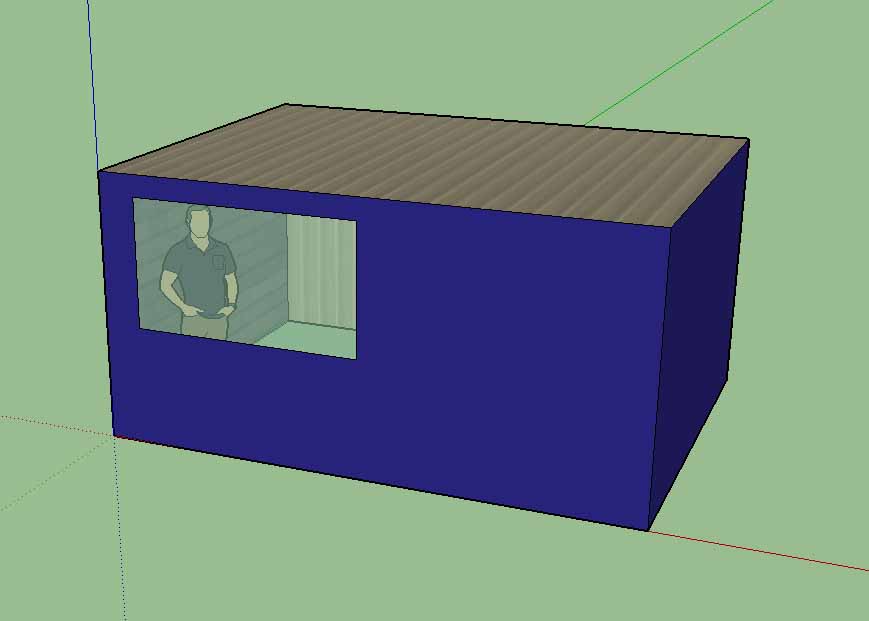 Model using pale blue texture at 60% saturation. |
Notice that the interior needs to be coloured. The floor can be left to use the base scenery colour, but if you want to add a different floor colour, put in a floor level just above ground level so that there will be no conflict (flickering) between the floor colour and the ground colour.
Top Tips
1. Create a transparent block pasted over with glass colour at 55% saturation. Overlay the window frames in full saturation to give a finished glazed window effect.
2. Create a test texture with glass effect in blocks and past it into a sketchup model with a constant background pattern. This can be used as a testbed from which to choose the approriate glazing effects. Cut and paste the appropriate glass texture onto your texture frame. This will ensure consistency across the airport models.
3. If you want a latice fence. Put the fence posts onto a transparent background and add the latice effect. This will be a see through texture. If you apply the texture to both sides of the model, it may need aligning in some CAD programs.
Caution
When two transparent scenery objects are seen one behind the other, the driving engine will have problems parsing the scenery. For example, a fence using transparent elements in front of a building using transparent windows. The fence will appear correctly displayed but the building behind the fence will be invisible in the region seen through the fence. Objects using solid scenery texture will still be visible through the fence.
Building with transparent windows front and rear with no barrier between the windows will appear to have no back wall when viewed through the windows.