The X-Plane flight simulator has a drive engine that is designed to run on a very powerful computer. Most computers will not be able to run X-Plane on its full settings, so there is a built in adjustmet that allows the user to selectively turn down some settings to reduce the load on the Processor (CPU) and Graphic Card (GPU).
With X-Plane freshly loaded, select settings and go to General settings.
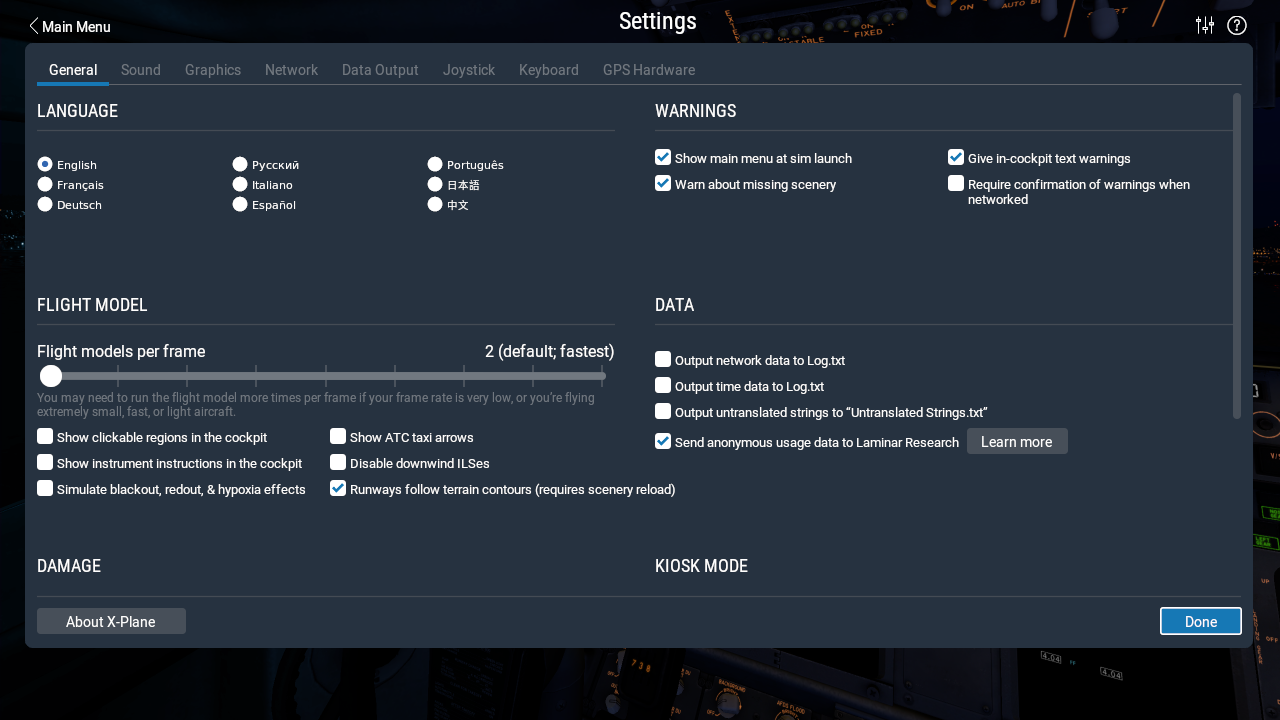
This screen can be used to set "Runways follow terrain contours" and "Warn about missing scenery", etc.
Now select Graphics settings.
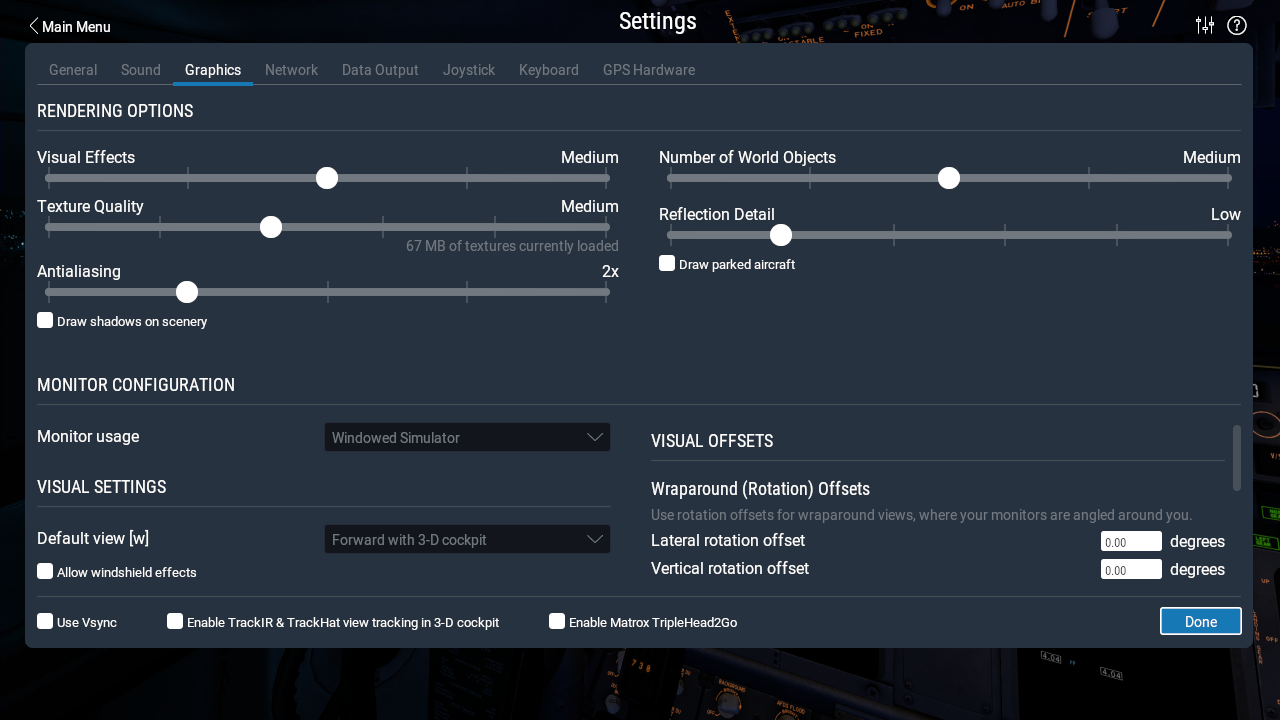
This is where most of the callibration tweaks need to be done. It is best to set sliders to medium to start with, and set Antiallasing to 2 and Reflection details to Low. If the simulator is running in a satisfactory way, stick with these settings. You may want to increase World objects and Texture quality settings later.
NOTE: If the Number of World Objects slider is set to 0 (Full Left) you will see no world objects in the scenery. This will leave all airports looking very sparce indeed.
Ticking Draw parked aircraft will populate the ramps with assorted aircraft, dependent on the ramp settings. Ticking Draw shadows on scenery will give a better visual effect, but bear in mind that these two boxes will have some impact on frame rate.
Aim for a frame rate of 30 frames per second. If the frame rate drops below 20 you may experience stuttering on screen.
Go to settings/Output Data and tick the framerate box for show in cockpit. That will display the frame rate counter on screen.
As you will notice, frame rate will be highest over the sea. It will be at its lowest near cities with large airports. Frame rate is slower when there are more scenery objects to display.
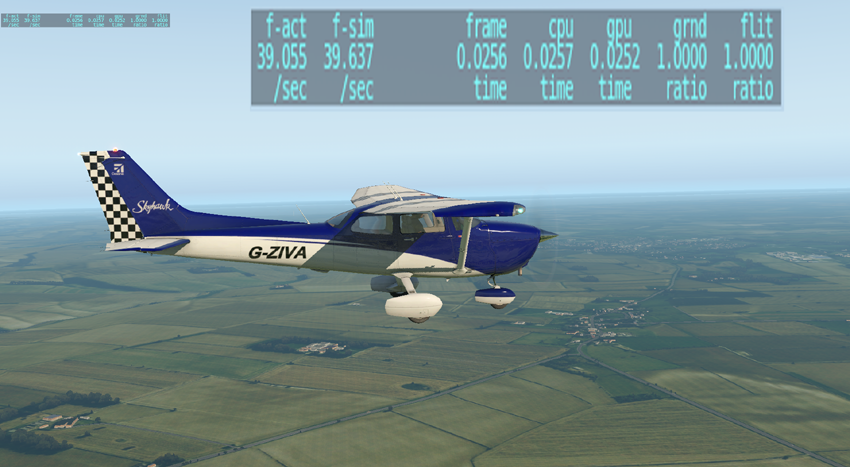
The
screen shot above shows the framerate count top left on screen.
This has been enlarged to show a framerate of around 39 frames
per second. This is a good rate for open country and would
probably fall to around 29 close to a big city airport and maybe 50
over open sea.
You will also note that the time for processing a
frame is given for both the CPU and GPU, showing a similar value.
This flight simulator setup is well balanced at this point.
The scenery shown is an aditional ortho-scenery that replaces the default scenery. This one is GB True Earth by OrbX.